Opening and using a shared mailbox in Outlook Web browser
This article explains how to open and send email from a shared mailbox. It covers the following topics:
Opening a shared mailbox Sending email from a shared mailbox Note:
Accessing and sending Emails: To view, manage and send emails within the shared mailbox, one must be added as a member. To be added as a member please raise an request in https://snow.payg.in.
Signing into your Outlook
To sign into your Outlook on the web account, proceed as follows.
Open your web browser chrome, edge etc. Go to the sign-in page at https://outlook.office365.com. A screenshot of a computerDescription automatically generated
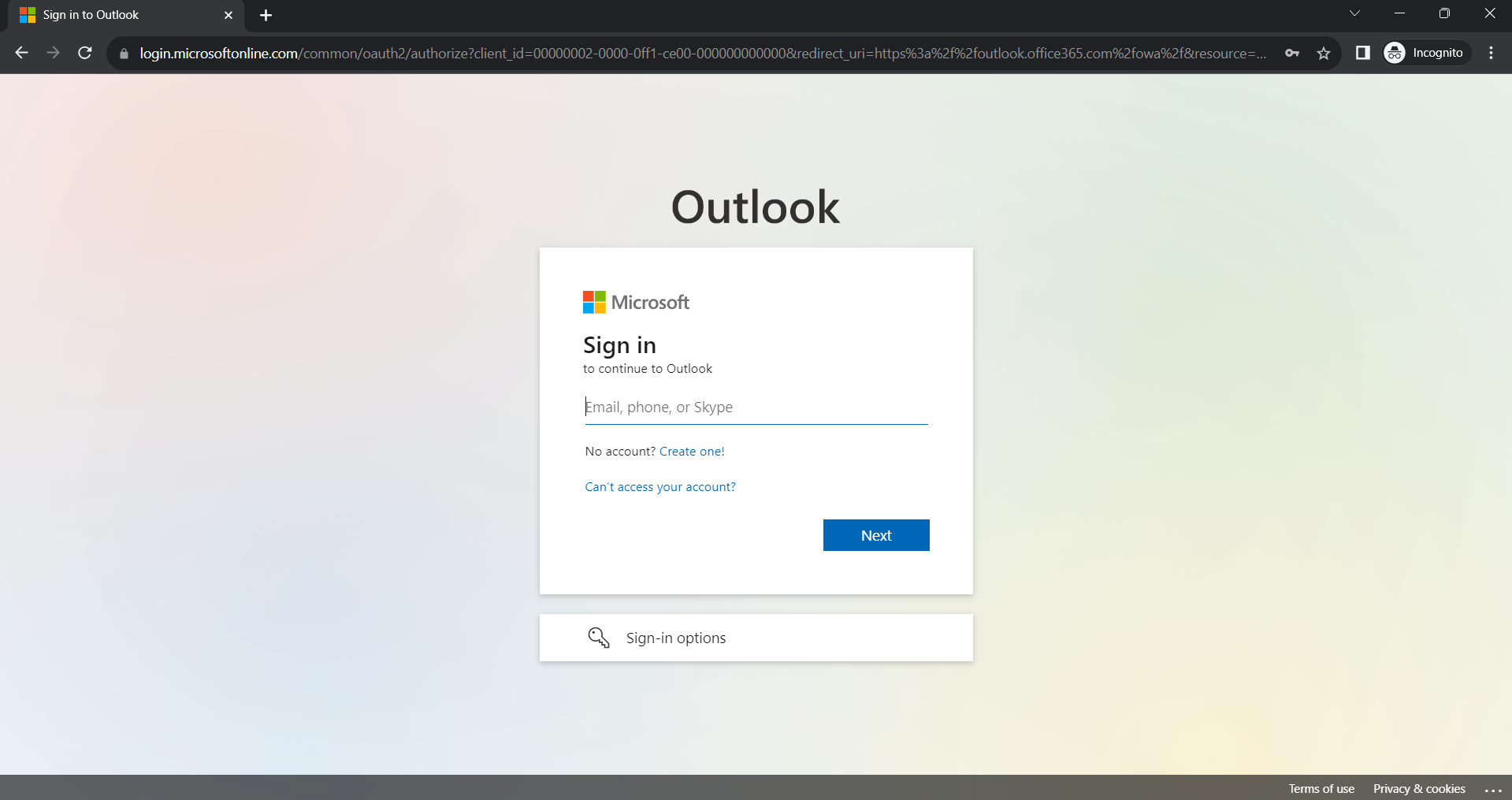
Enter the official full email address. Note: If your email address is already visible on the Office 365 sign-in page, then simply click on the email address.
4.If prompted, enter your password, then click Sign in.
You're now signed into your Outlook on the web account.
Opening a shared mailbox:
Adding the shared mailbox so it displays under your primary mailbox in Outlook on the web.
To add a shared mailbox so it displays under your primary mailbox then proceed as follows from your account in Outlook on the web.
Right-click Folders option in the left navigation pane, and then choose to Add shared folder or mailbox. A screenshot of a computerDescription automatically generated
The Add shared folder or mailbox dialogue box appears.
A screenshot of a computerDescription automatically generated
In the Add shared folder or mailbox dialogue box, type the email address of the shared mailbox.
The name and email address appears in the dialogue box.
A screenshot of a computer screenDescription automatically generated
Click Add. The shared mailbox displays in your Folder list in Outlook on the web. You can expand or collapse the shared mailbox folders as you can.
A screenshot of a computerDescription automatically generated