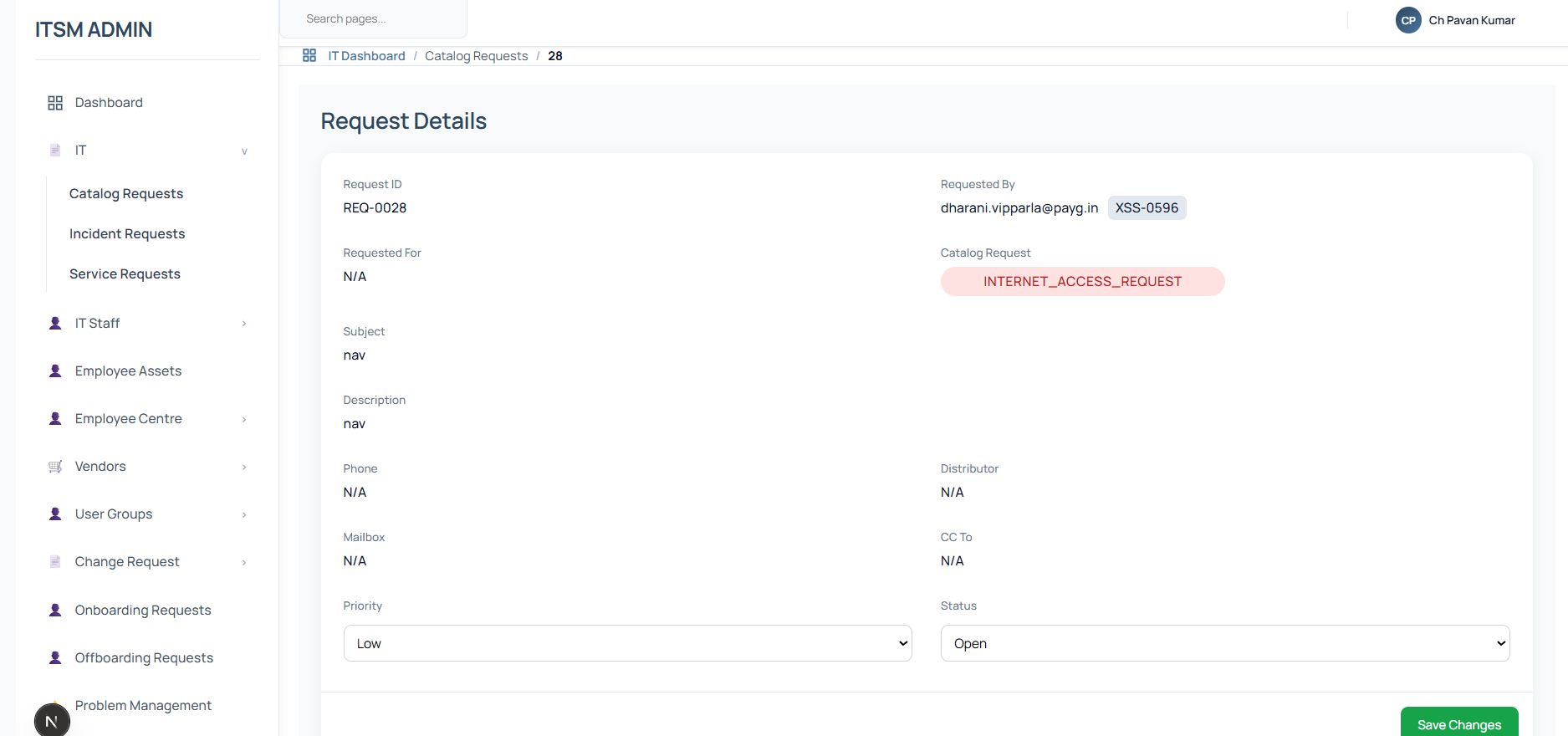
Navigating Through ITSM
Role: All Users (Employee, IT Staff, HR Staff)
Team Accessible to: All Teams
The IT Service Management (ITSM) Portal is a modern, responsive web application designed to streamline IT operations, HR workflows, and employee service requests. Unlike generic off-the-shelf platforms, it provides a custom-tailored workspace with role-based access control, real-time SLA metrics, and interactive request management.
In this section, you will learn how to access the portal, navigate its interfaces, and understand its core layout components.
1. Accessing the ITSM Portal
You can access the ITSM Instance (Production and Development environments) by using the following URLs:
- Development Portal: https://itexpert.payg-india.com
- Production Portal: https://itexpert.payg-india.com
- Local Dev Server:
http://localhost:3000
Logging In
Login to the portal using your custom credentials:
* Employee ID: Must be prefixed according to your department or role (e.g., xss-XXX for employees, it-XXX for IT staff, and hr-XXX for HR staff).
* Password: Secure password associated with your account.
Account Recovery (Forgot Password)
If you forget your password, click Forgot password? on the login page to initiate a secure 3-step recovery flow: 1. Identity Verification: Enter your Employee ID or registered email. 2. One-Time Passcode (OTP): Input the OTP sent to your registered email address. 3. Password Reset: Set a new password (minimum 6 characters) and confirm it.
[!NOTE] Session Timeout: The application dynamically monitors activity (mouse clicks, key presses, scrolling). Inactive sessions are automatically secured, requiring you to sign back in.
2. Role-Based Portals
Based on your account's primary role, the ITSM application dynamically routes you to your specific workspace:
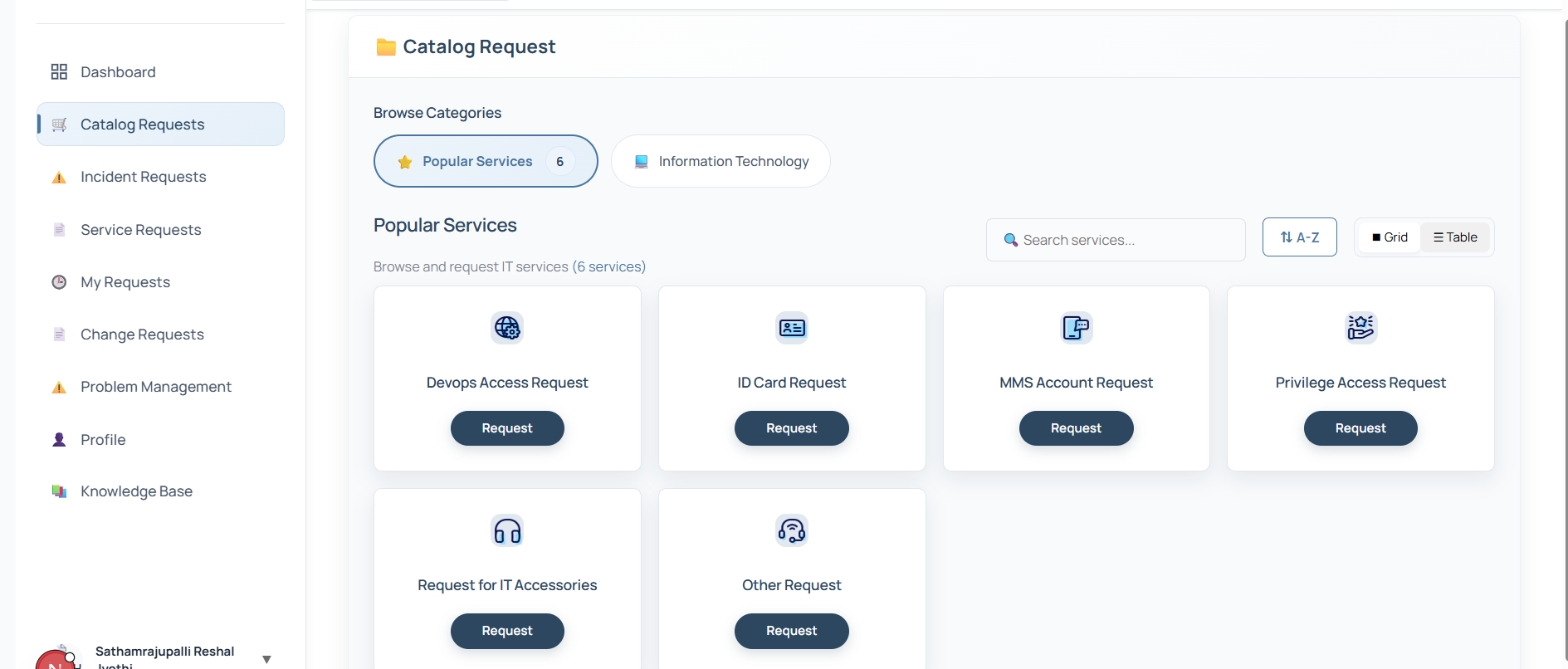
A. Employee Portal (/dashboard)
The landing page for standard employees. It focuses on raising requests and self-support. * Metric Overview Cards: Live counts of your submitted Catalog Requests, Incident Requests, and Service Requests. * Quick Actions Grid: Direct shortcuts to request common resources: * Laptop Request * Mobile Request * New Mailbox Request * Internet Access Request * IT Accessories Request * IT Chatbot Helper: An interactive chatbot accessible in the bottom right corner of the screen to guide you, answer common FAQs, and assist in drafting requests.
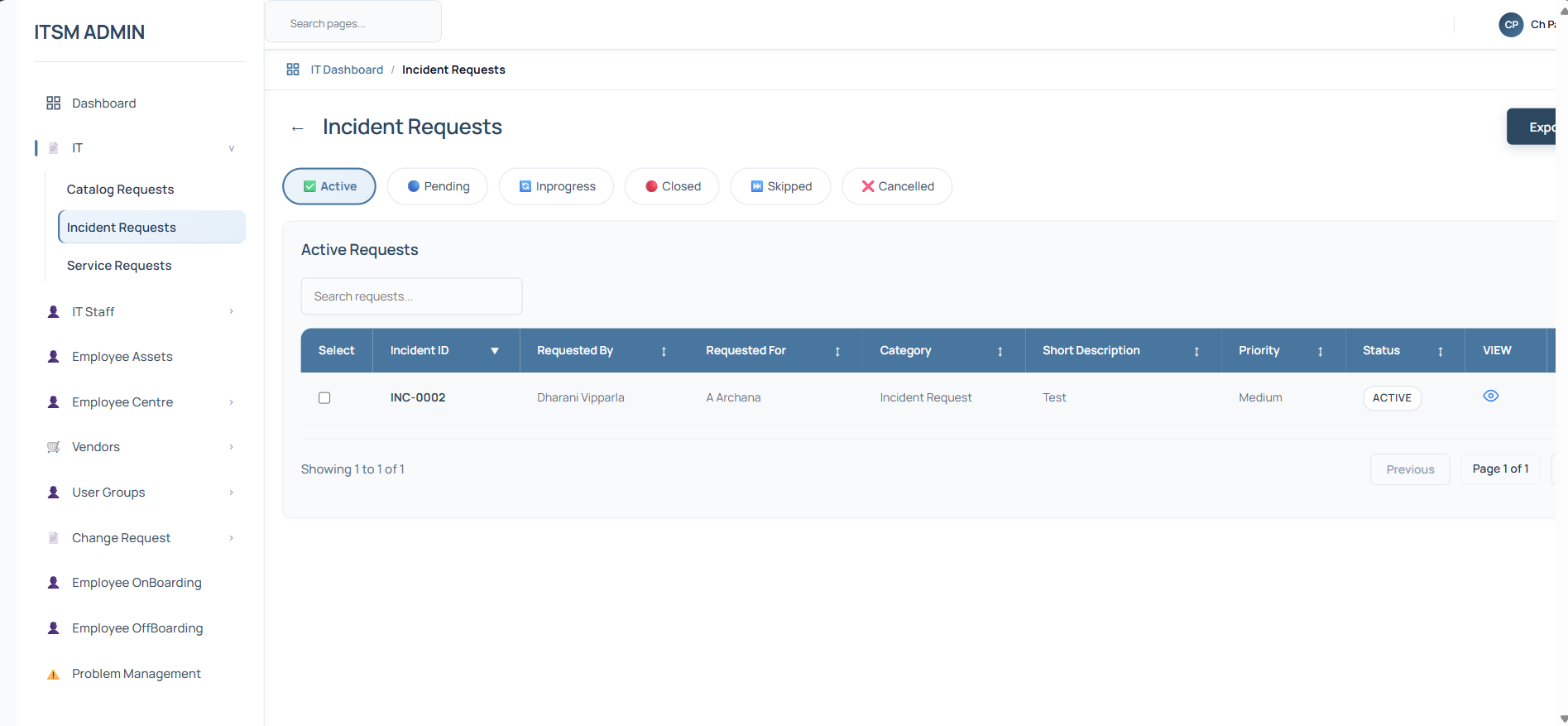
B. IT Admin Portal (/it/dashboard)
The landing page for IT staff, support engineers, and supervisors. * Comprehensive Metric Cards: Real-time totals and state breakdowns (New, Active, Closed) for: * Catalog / Service / Incident Requests * Change Requests (Critical, Normal, Standard, Emergency) * Onboarding and Offboarding tasks * IT Members and Vendors (Active vs. Inactive counts) * Asset Inventory (with stock status: In Use, In Stock, Maintenance, Retired) * SLA Performance Stats Widget: A live tracking grid filterable by category (Incident, Service, or Catalog) displaying compliance percentages, breached rates, and priority-level gauges. * Request Status Distribution: Interactive pie chart visualizing status metrics.
C. HR Portal (/hr/dashboard)
The landing page for HR administrators, helping manage employee onboarding and offboarding tasks, checklists, and documentation.
3. Main Workspace Layout Components
The ITSM interface consists of three primary visual layers: the Top Navigation Bar, the Left Sidebar Navigator, and the Main Content Panel.
graph TD
    AppShell[ITSM Application Shell] --> Navbar[Top Navigation Bar]
    AppShell --> Sidebar[Left Sidebar Navigator]
    AppShell --> ContentPanel[Main Workspace / Content Panel]

    Navbar --> PortalSwitcher[Portal View Switcher]
    Navbar --> ProfileDropdown[Profile & Service Dropdown]

    Sidebar --> NavMenu[Dynamic Role-Aware Menu]
    Sidebar --> ThemeSelector[Appearance / Theme Switcher]

    ContentPanel --> Breadcrumbs[Breadcrumb Trail]
    ContentPanel --> ActivePage[Active Workspace Pages / Forms]
1. Top Navigation Bar (Navbar)
Located at the top of every screen, this bar contains key context-switching features:
* Portal View Switcher: Allows users with admin privileges (IT or HR staff) to toggle seamlessly between the Admin/HR Dashboard and the standard Employee View using the Switch to... Portal button.
* Profile & Service Dropdown: Shows your logged-in profile avatar. Clicking it reveals:
* Your username, registered email, and a link to Profile Settings (/profile).
* Service Access Switcher (For IT Users): Switch between active team roles (e.g., Infrastructure Team, DevOps, or Production Team).
[!IMPORTANT] Team-Based Authorization Guard: The portal restricts admin pages depending on your active selected service: * Infrastructure Team (Service ID 1): Cannot access DevOps, Infrastructure Admins, or Production Admins dashboard areas. * Production / DevOps Team (Service ID 2 or 4): Cannot access Asset Inventory, Vendor Management, IT Members lists, or Onboarding/Offboarding task panels.
2. Left Sidebar Navigator
Provides access to pages and settings, auto-collapsing on smaller screen sizes: * Dynamic Menu Navigation: Lists menu options filtered by your active portal and team. Includes submenus (e.g., Change Requests expands into Create Change, Change Tasks, Approvals, and Change Types). * Knowledge Base Link: Directly launches this documentation site, automatically forwarding your credentials via SSO token. * Appearance Theme Switcher: Located in the sidebar footer, allowing you to choose between Light, Dark, or System-resolved UI color modes. * Sign Out: Log out safely of the active session.
3. Main Workspace / Content Panel
The workspace area where active forms, tables, and details are rendered:
* Breadcrumb Navigation: Displays your path hierarchy at the top (e.g., Home / IT Dashboard / Incident Requests), keeping you oriented.
* List Filters & Search: Search lists by specific attributes (Caller, Department, Assignee, Priority) and filter via Status Tabs (All, Active, Pending, Inprogress, On Hold, Closed, Cancelled).
* Forms & Progress Steps: Layouts for editing tickets. Includes state progress steps at the top, categorization dropdowns, assignees, and impact levels.
* Timeline & Notes Timeline: An interactive chronological feed displaying logs of status changes (including transition reasons and note summaries) and work comments.
* Inline Document Previewer: View ticket attachments without leaving the workspace. Includes an inline image/PDF viewer, a Mammoth-powered DOC/DOCX viewer, and an XLSX/CSV spreadsheet viewer.