Emergency Change Management Work Instructions in OrionX
Role: itil, change owner, change manager, change implementer, CAB
Available for Teams: All
Emergency changes are unexpected, and generally must be implemented immediately to mitigate or minimize the negative effects of an emergent situation. Emergency changes may include isolating a network from a large-scale DDoS attack or applying an emergency patch.
Emergency changes must be raised and resolved quickly. Only ITIL users and Change Owners can create and work on Change Records. End users cannot submit Change records from OrionX portal.
Working on Emergency Change
A new Emergency Change Record can be created by following these steps:
- From the OrionX Navigator, type Change and select Create New
- From the next screen under Create a change request, select Emergency under All options
- This will open a new Change Record form where you record all mandatory and other details of Change


In the New Change Request Form, a requester has to fill all the details:
- Requested By: A Change Initiator or Change Requestor who actually submits a change
- Category: Select a valid Category for your change request. In future, this field can be used for reporting purposes
- Configuration Item: The IT Service or IT infrastructure (like Cloud App Server, Cloud Storage Account, Disk Virtual Machine Instances etc.) that you want to implement the change on
- Priority: Select an appropriate Priority based on the importance, impact and urgency of your Change
- Risk: Select an appropriate value based on the Risk and Impact Analysis you made for your Change
- Impact: Select Impact based on the impact of your Change
- Short Description: A short, one line description of Change that you want to implement
- Description: A detailed description of what this change is about
- Assignment Group: The team that is going to manage this Change
- Planning > Risk and Impact Analysis: Provide detailed understanding of risks before/after change
- Planning > Backout Plan: If change goes wrong, how to restore service
- Planning > Test Plan: Testing steps before, during & after change implementation
- Schedule > Planned Start Date/Time
- Schedule > Planned End Date/Time
- Optional: Attach Presentation or Document with additional detail
- Click Submit to save your Change Record
Note: All fields with Asterisk
*are mandatory.
After you Submit an Emergency Change Record
When a new Emergency Change Record is submitted/created, one “Change Task” is created automatically. Scroll down to see these details in a tab called “Change Tasks”.
- Review Task: Used for Planning activities during the Assessment Phase
- Additional tasks can be created by clicking on “New” button
- Email Notifications are sent to interested parties after change and change tasks are created
Change Owner/Manager will Drive the Change
Only Change Owner/Change Manager can take the change through its lifecycle. After creation:
- Check the details provided in the Change Record and confirm this is a valid change
- Change Manager to assess details provided and make necessary changes
- They may work with Change Requestor or stakeholders to input maximum details
- Change Manager should convene an Emergency meeting (CAB meeting) to ensure awareness
Change Approval / Rejection
Once the CAB has reviewed the information, Change Manager records the outcome in Notes & CAB and triggers approval by clicking “Request Approval”

A notification is sent to approvers, and they can also access this Approval section via My Approvals


CAB approvals can be provided by clicking on the Approve button.
- Approval of the change is based on the actual details provided in your change record.
- You cannot change the details after the change is approved.
- When the change is approved, it automatically moves to the Change Schedule phase.
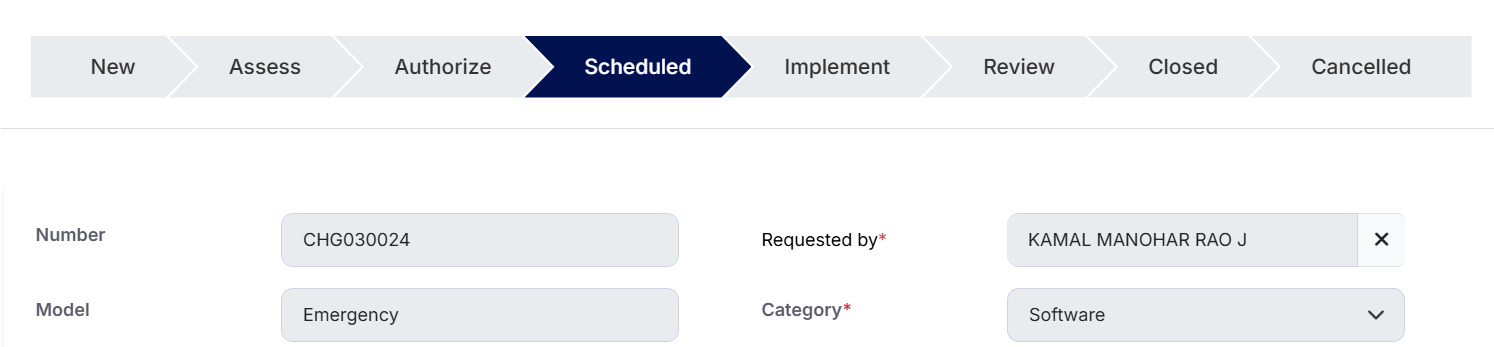
Change Implementation
- Change Owner/Manager should move it to next phase by clicking on Implement Phase
- Clicking on Implement will move the Change to implementation and create tasks
- Teams must complete assigned tasks and close them when they are done

Change Review (PIR – Post Implementation Review)
When all tasks are closed, the Change automatically moves to Review State.
OrionX shows a message that Review Task must be worked on and closed before moving forward.

Change Closure
When Change Review is complete, Change Owner can Close the Change by clicking Close.
All required fields such as Close Code and Close Notes must be filled.

Conflict Calendar
The Conflict Calendar helps Change Owner schedule changes to avoid collisions.