How to Create a Requests related to Information Technology
Role: ITIL
Team Accessible to: HR and IT
Information Technology related requests can be raised by HR or IT team.
IT team can raise a bundled request too for new User Onboarding.
Follow these steps to raise a new IT Request:
1. Access your OrionX Instance
Login to OrionX by opening the below link:
🔗 https://t2.payg-india.com
Based on your current session, the tool should directly take you to OrionX or prompt you to log in using your PAYG AD credentials.
2. Navigate to Service Catalog
From the OrionX Home Page
Click “All” → Type “Service Catalog” and then select
Self Service → Service Catalog
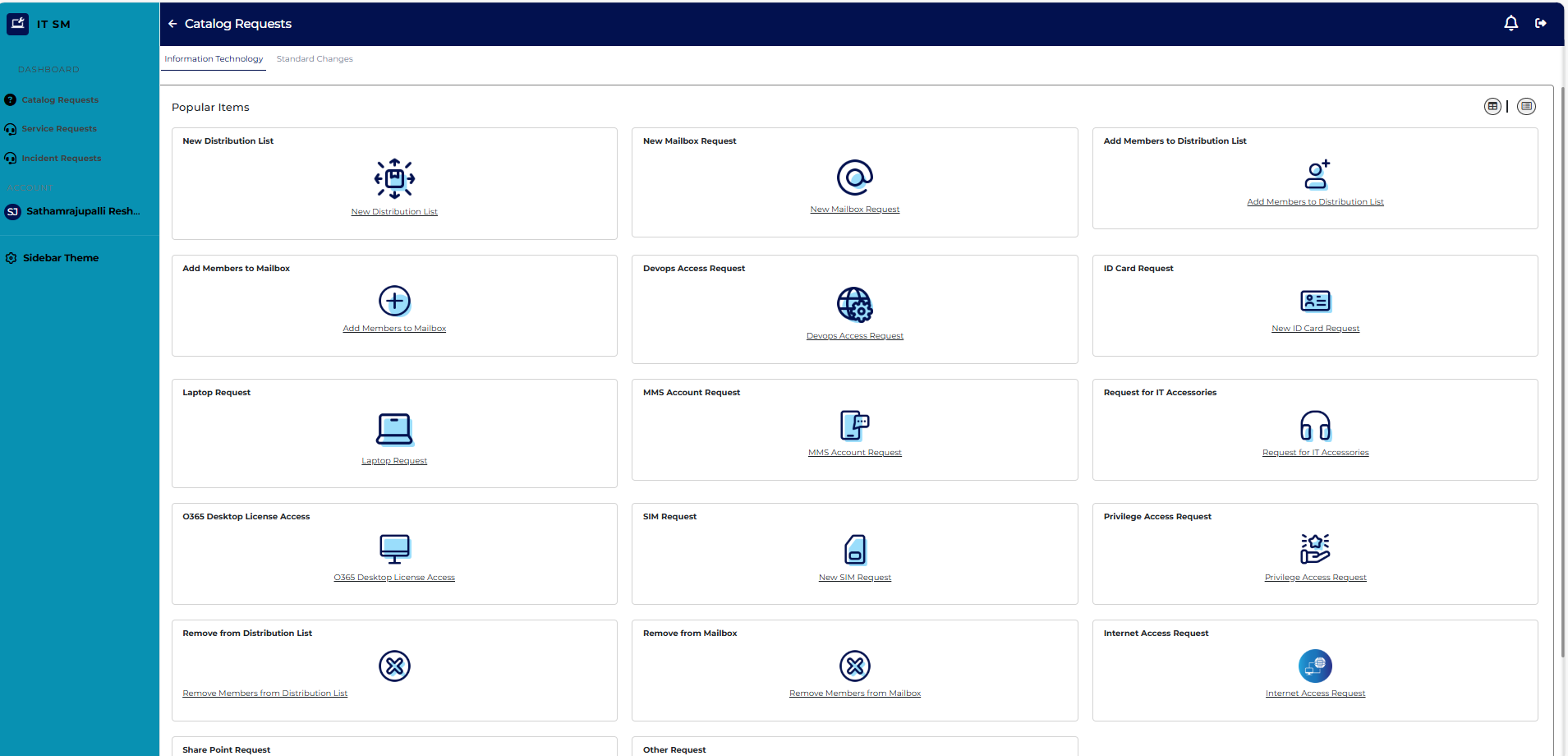
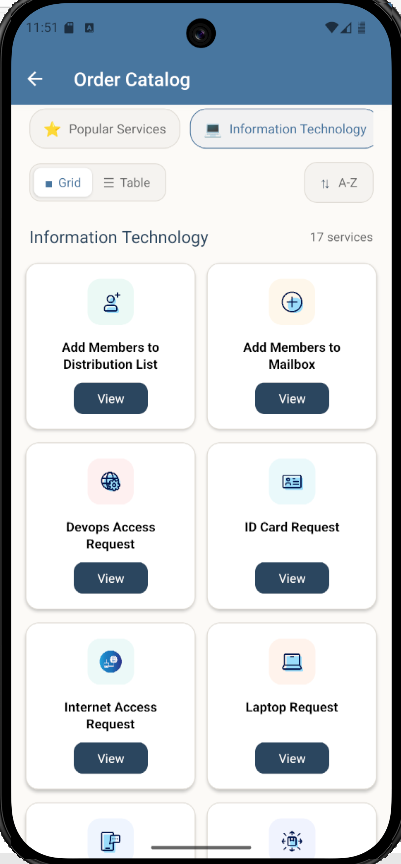
Check with mobile screen
3. Select Request Type
You will be presented with a list of Service Catalogs.
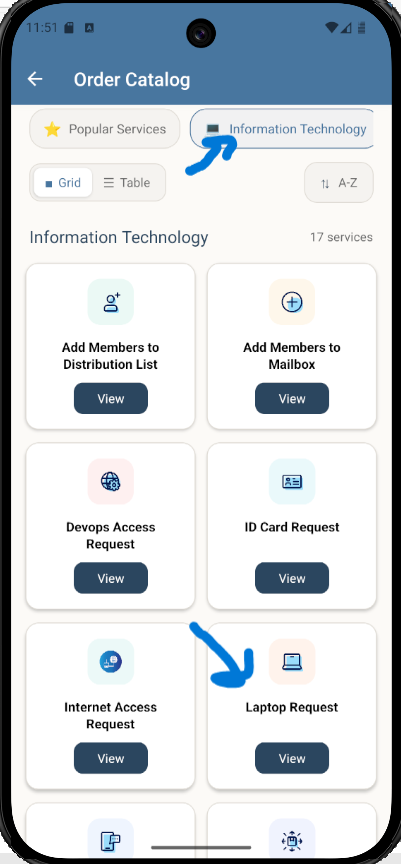
Select “Information Technology” Category → Choose an appropriate catalog request.
In this example, we select “Laptop”.
So, please select "Laptop" for raising a Laptop Request.
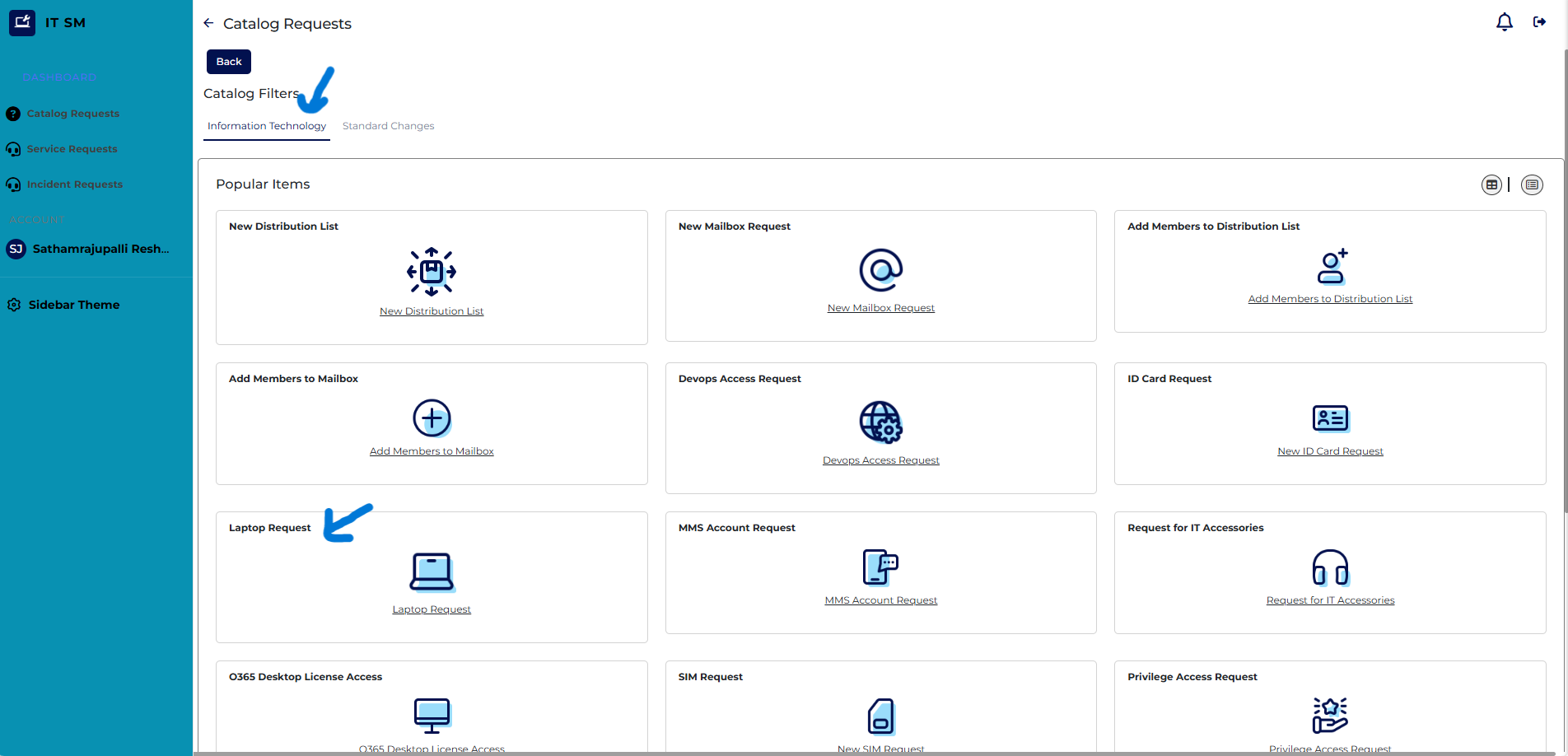
Check with mobile screen
4. Fill Mandatory Fields
In the form presented, fill all mandatory fields highlighted in yellow and marked with *.
Note: Fields marked with search symbol must be selected from the dropdown list.
After filling in mandatory fields, click “Order Now”.
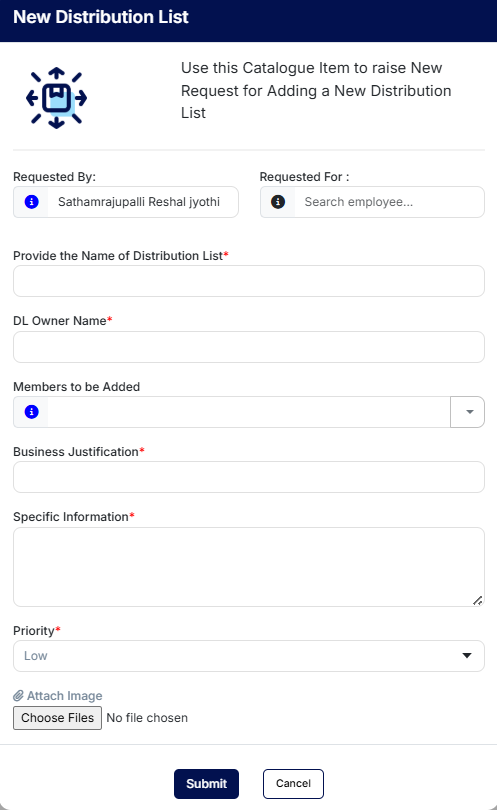
Check with mobile screen
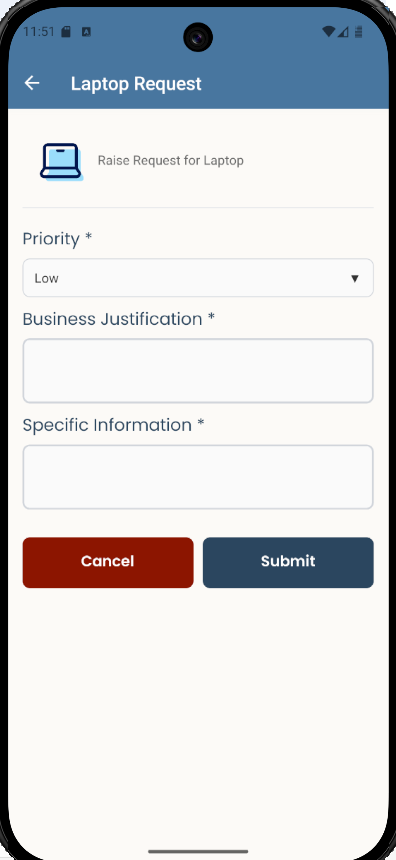
5. Submission Confirmation
You will receive a confirmation page for successful submission of your request.
Copy the Request Number to track the status.
Click Back to Catalog to submit another request if required.
Below screenshot shows the request is waiting for approval.
(Not all requests will go through approval flow.)
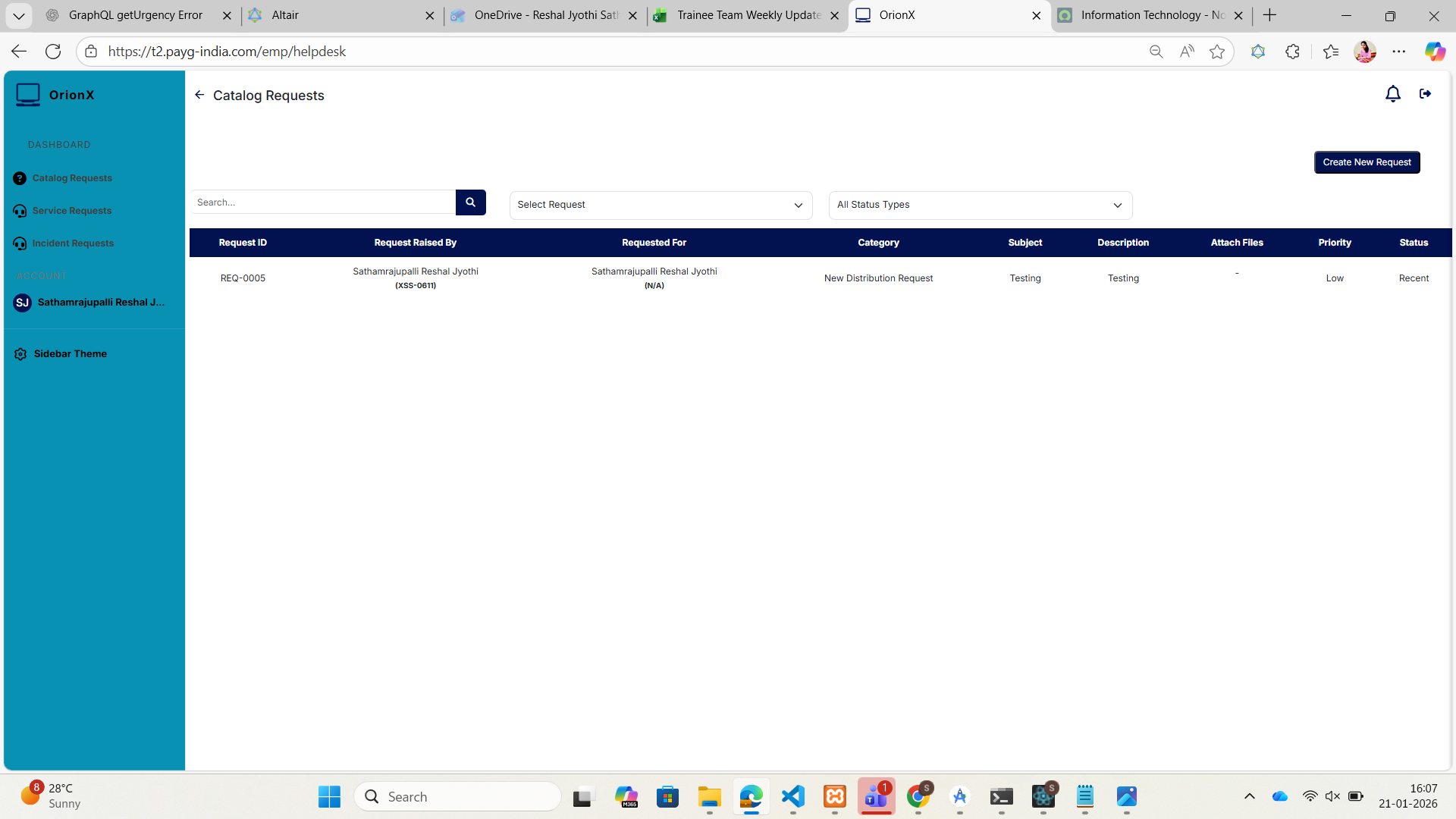
🎉 Request Submitted Successfully
You can track the order status under View My Requests or through the confirmation email.